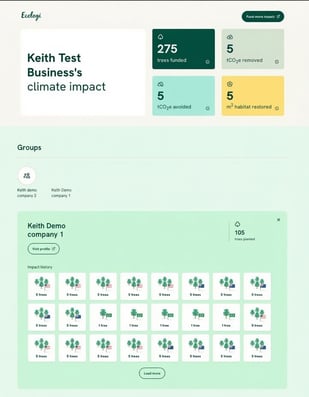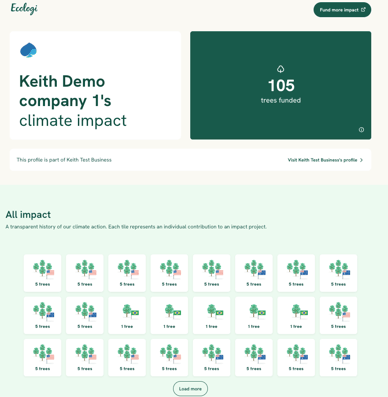
Groups let you split the impact your account funds into separate collections - for example by client, brand, team or partnership. You manage them in the Impact area, assign each piece of impact to a group, and every group gets its own tailored public ‘sub-profile’. Your main public profile shows the collective impact of all your groups.
Good to know: grouping never moves or changes your impact - it always stays with your account. Groups are simply a way to organise and filter the impact your account already owns.
Creating and managing groups
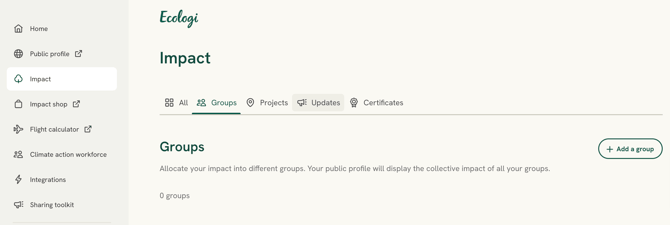
- In the left-hand menu, select Impact, then open the Groups tab to see your groups and add new ones.
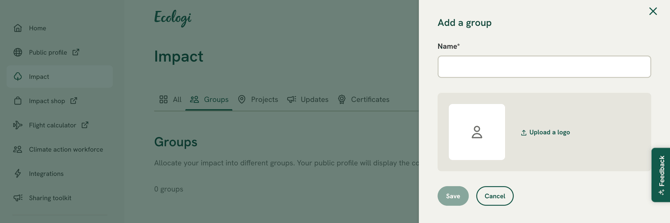
- Select Add a group, enter a Name (required) and, if you like, Upload a logo - leave it blank and a placeholder image is used - then select Save.
- Use a group's ⋮ (more) menu to edit it (change its name or logo), delete it, or copy a link to its public profile.
Deleting a group removes the group and unassigns its impact from it - but your account keeps all of that impact; it simply won't be filtered under that group any more.
Assigning impact to a group
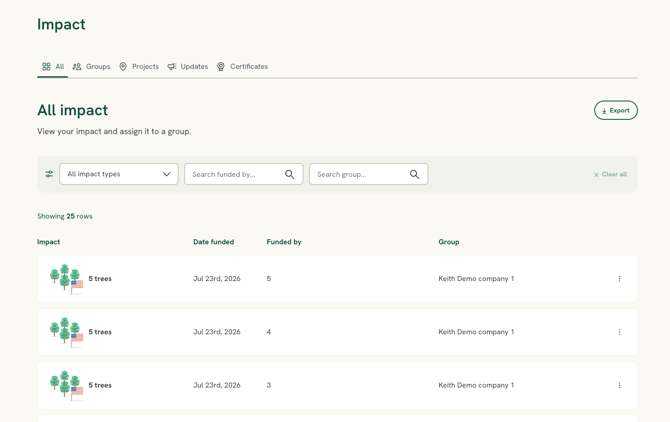
- On the Impact page, open the All tab. Your impact is listed in a table with Impact, Date funded, Funded by and Group columns.
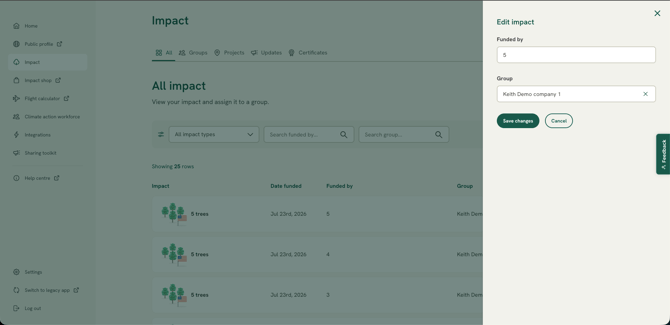
- Open a row's ⋮ (more) menu and select Edit impact.
- Set the Group and who Funded by it, then select Save changes. To unassign a piece of impact, select no group and save.
You can also assign impact to a group as you fund it - in the Impact marketplace basket, select Customise, then Add to an impact group.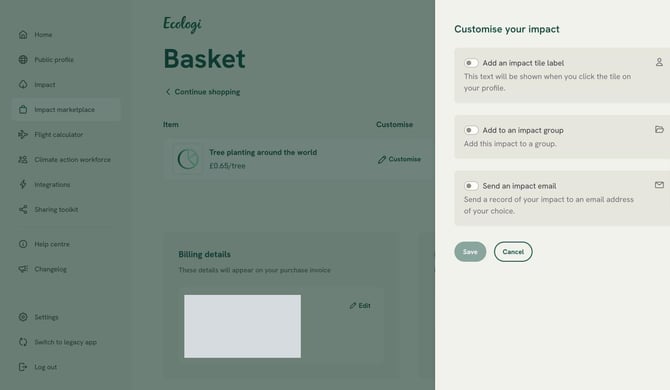
You can find impact quickly using Search group and Search funded by, or filter by impact type.
How groups appear on your public profile
Your public profile shows the collective impact of all your groups. Near the top, a Groups carousel lets visitors select a group to see a breakdown of its impact, totals and history. Each group also has its own tailored public ‘sub-profile’ showing just that group's impact and projects, with a note that it's part of your wider account and a link back to your main profile.
You can share a group directly by copying its profile link from the group's ⋮ menu. Links to individual tiles are group-aware too: a tile shared from a group opens that group's profile, and one shared from your main profile opens the parent.